
About the data landscape
As part of the Complement-ARIE program, Technology Development Centers (TDCs) contribute data generated using NAMs to the NAMHub for use by the Complement-ARIE consortium and by the wider scientific community. To ensure the NAMHub can support ingestion and sharing of all relevant data types, each TDC is responsible for providing a summary of the data the NAMHub should expect to receive. This summary is know as a data landscape.
The data landscape helps the NAMHub team understand what types of data are expected, how those data may need to be organized, and what support will be needed for data ingestion, storage, governance, access controls, and future collaborations. It also helps the team identify what information should be included in the NAMHub data model and which ontologies may be needed to describe the data consistently.
The data landscape is a living document. It can be updated throughout the course of the research as plans change, new data types are generated, or additional information becomes available.
To support this process, the NAMHub team has created a dedicated Synapse workspace for each TDC to provide and update its data landscape information.
Steps to complete the data landscape:
1. Sign in to the NAMHub
Sign in or create your own Synapse account using the Sign In button on the NAMHub.

2. Become a Synapse Certified User
Complete the 15-question Synapse certification quiz. Certification lets you upload files, add metadata, and contribute to Synapse. You can also find the quiz in your TDC project space.
3. Request to join your TDC team
Submit your username using this link. The NAMHub team will add you to the appropriate Synapse team.
If you forgot your Synapse username, you can check it here.
Once the NAMHub team has confirmed that you have been added to your TDC team, proceed to step 4.
4. Sign in to the NAMHub
Sign in using the Sign In button on the NAMHub.
5. Open your TDC Synapse project
A NAMHub data manager will assign you a task to complete the data landscape, and you can navigate to that task in your TDC Synapse project one of two ways.
Option 1: Navigate to the Studies page. Select the relevant “SYNAPSE PROJECT ID” link for your TDC, such as the one shown in the example below.

Option 2: After the NAMHub team creates your data landscape task, you will receive an email with a link. Click the link to open the task directly in Curator, and continue with step 6.
6. Navigate to the Tasks and Actions tab
Once you have opened the Synapse project for your TDC, navigate to the Tasks and Actions tab. Find the data landscape task assigned to you, and click Open Curator. If you do not see the task, please submit a help desk ticket.
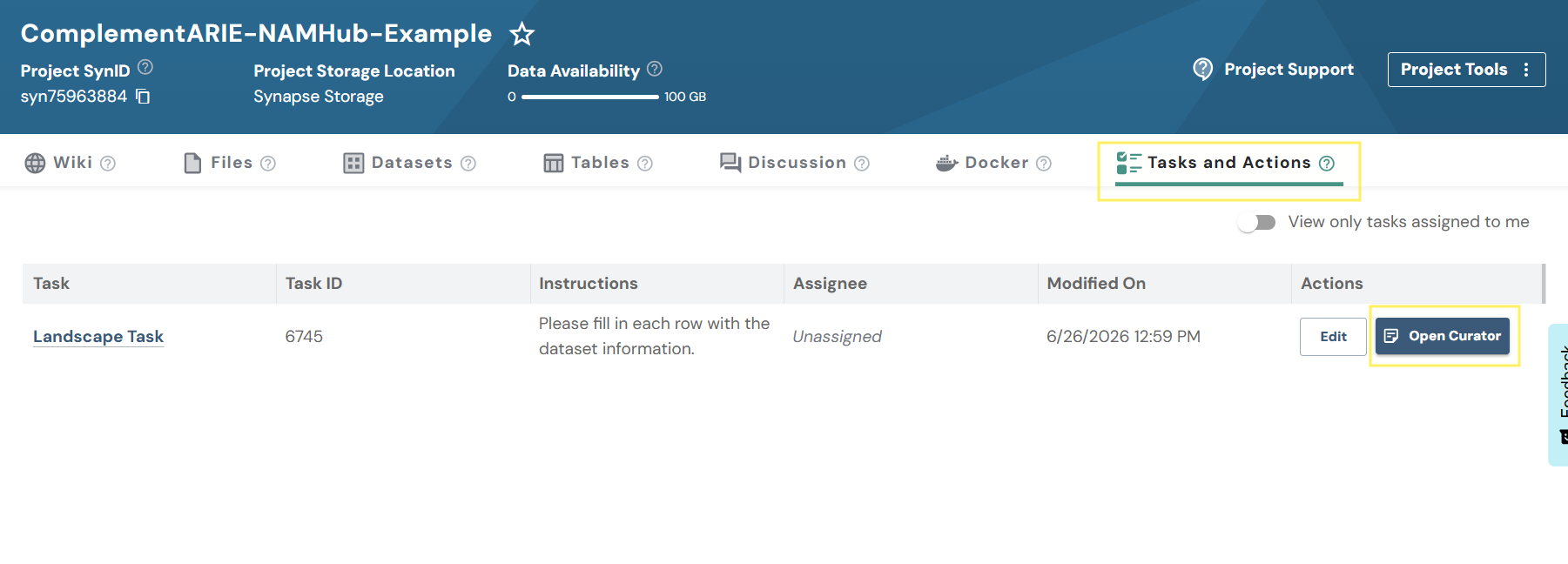
7. Complete the data landscape.
When you click Open Curator, a spreadsheet will open, similar to the examples below. Each row represents one dataset your TDC plans to contribute to the NAMHub. Please fill out all required columns and ensure that there no validation errors as described below. Note that all of this information is needed to prepare your data submission to the NAMHub.
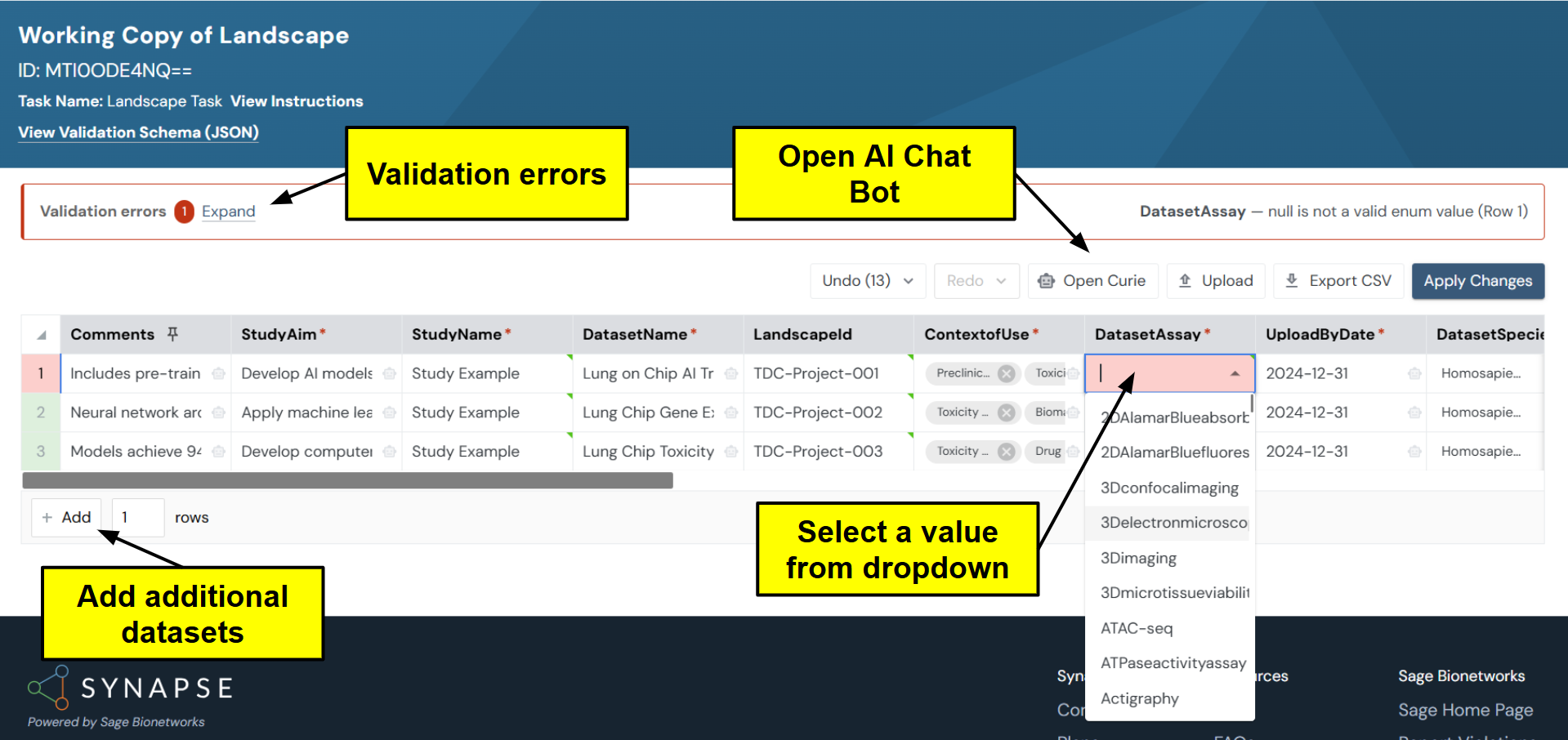
If the spreadsheet does not open, check your browser’s pop-up blocker, and make sure pop-ups are allowed.
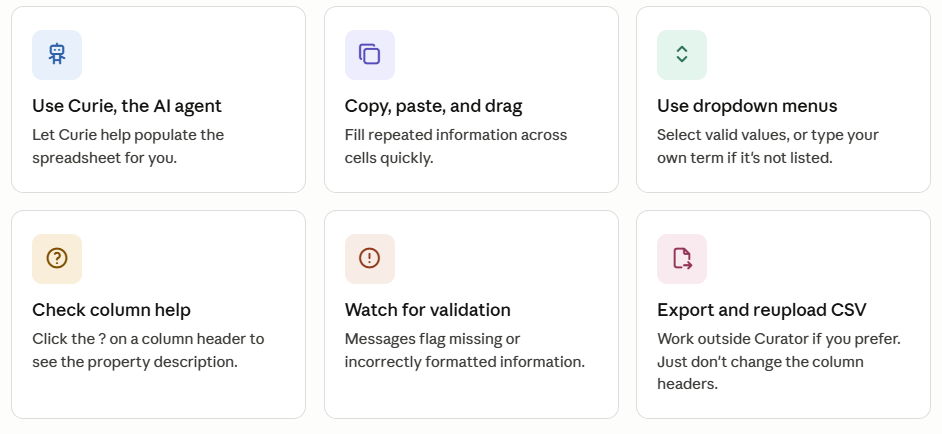
Use the features described below to help streamline the submission process and ensure your data landscape is accurate, complete, and ready for NAMHub team review.
Chat with the AI agent to help complete the landscape.
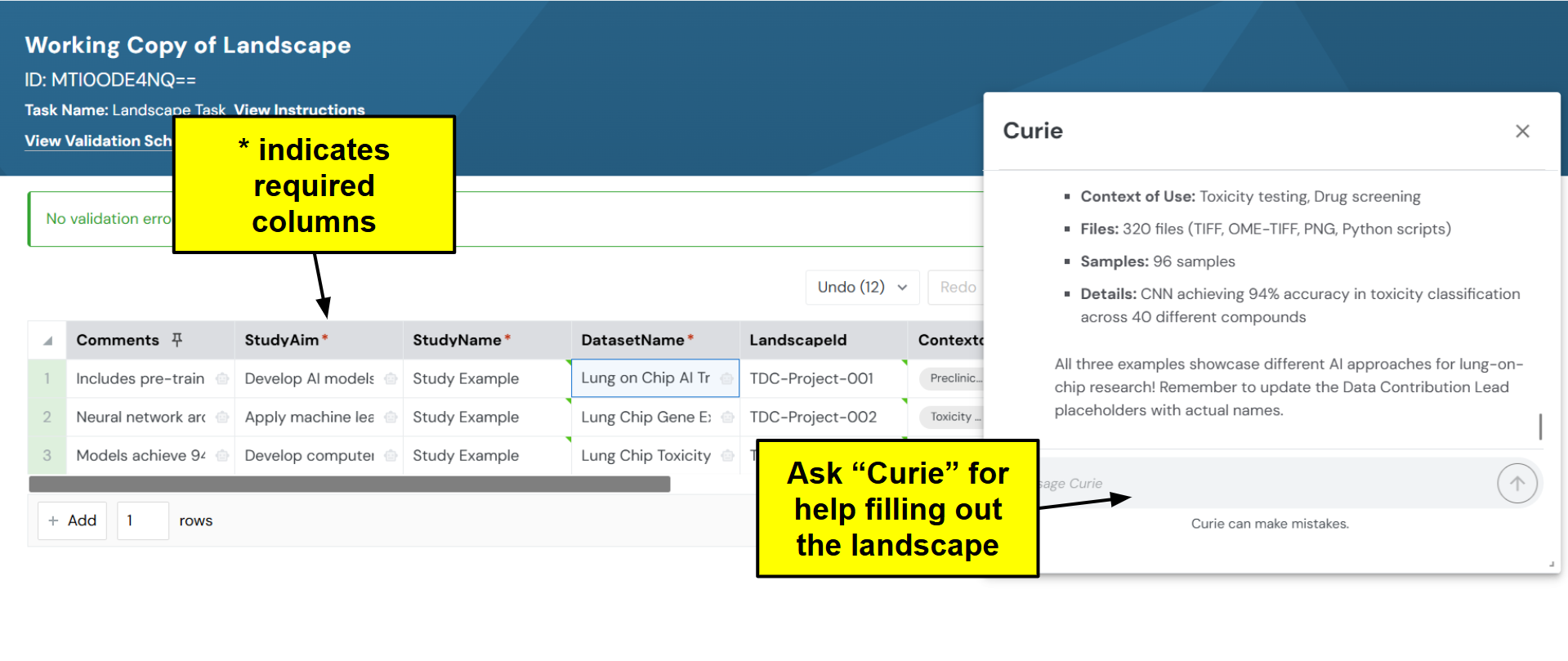
Here are some example prompts to put in the chat:
-
Here is information about our project. Help me fill in the relevant columns.
-
Suggest values for empty cells based on the dataset name and description.
-
Explain the validation errors and how to fix them.
-
Suggest applicable standards, controlled terms, or ontologies based on the dataset description.
-
Refine these dataset names so they are more clear and consistent.
-
Rewrite these dataset descriptions so they are concise and useful for data sharing.
-
What file formats would make these datasets most reusable?
-
Check the completed spreadsheet for consistency before submission.
See more Curator features on this documentation page.
8. Submit your changes
When you are finished, click Apply Changes to submit the data landscape. You can submit even if there are validation errors.
Need more time? Curator saves your work in real time, so your progress will be saved if you close the application and return later.
Have questions? Run into any issues? Please submit questions to the NAMHub Help Desk.
View the latest requirements for the data landscape forms here.